

Memanto Cloud
Memanto Cloud is hosted Memanto. Your memories live in the cloud instead of on one machine, so every coding tool on every computer you sign in from shares the same agents. There is no API key to copy, no server to run, and nothing to install besides the CLI.Sign in with your browser
memanto login opens the Memanto console. Approve the computer and you’re done.One memory for all your tools
Claude Code, Cursor, Codex and the rest read and write the same agent. A fact saved in one shows up in the next session of another.
Every computer
Sign in on your laptop and your desktop: both see the same memories.
Console
Browse, search, edit and expire memories, resolve conflicts, and see which tools are connected, at console.memanto.ai.
Console guide
Every page of the Memanto console: memories, connections, migration, API keys, usage and billing.
Cloud API
Call Memanto Cloud over HTTPS with an API key. No server and no sessions.
Get started
Option 1: let your coding agent do it
Paste this into Claude Code, Cursor, Codex, or any coding agent:memanto login (you approve it in your browser), connects itself, and saves a test memory.
Option 2: three commands

1
Sign in
memanto login prints a link and a short code, and opens the link in your browser: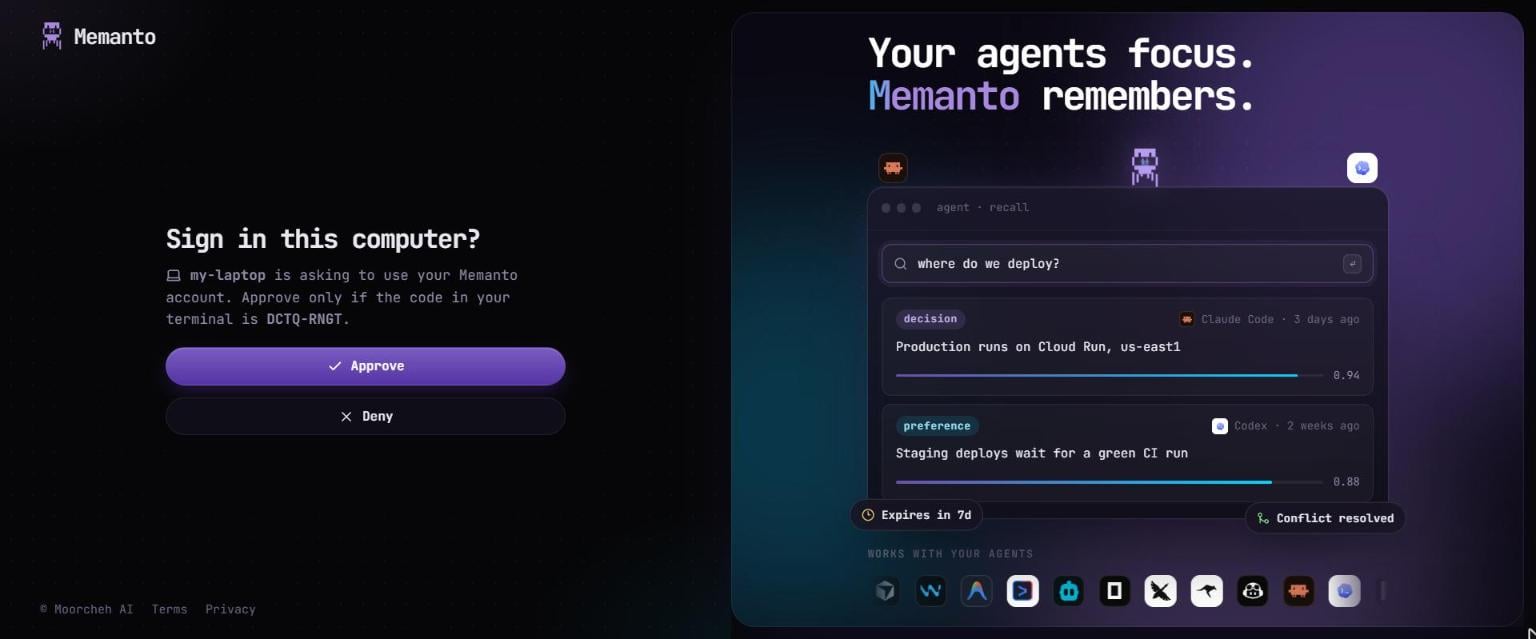
2
Connect your tools
Run
memanto connect from your project folder. Tools it finds in the project are ticked already; choose the agent they share, or create one:memanto connect --yes skips the questions: it connects every detected tool to your most recent agent (or creates my-agent). To connect a single tool, name it: memanto connect claude-code. See memanto connect.3
Check it works
Backend reads memanto-cloud, followed by your account, plan, and how much of this month’s usage is left. Your memories are in the console at console.memanto.ai/memory. On Memanto Cloud, memanto ui opens the console too.How your tools work together
Every tool connected to the same agent reads and writes the same memories, on any computer. To keep that easy to follow:-
Each memory records which tool saved it (
source, for examplecursor) and which project it came from, as aproject_<folder>tag (the git root’s folder name). The console’s Connections page shows each tool and when it was last active. -
Sessions start caught up. When a Claude Code, Cursor, or Codex session starts, Memanto adds the memories other tools saved since this tool’s last session in the same project:
-
The MCP
recalltool takes an optionalprojectto search one project only. Without it, tools search every project’s memories.
Signing in and out
- Your key is saved as
MEMANTO_API_KEYin~/.memanto/.env. It is never written into a tool’s config files. - Every computer you sign in from is listed in the console under API keys → Computers, where you can revoke it. Signing in again on the same computer replaces its entry instead of adding another.
memanto logoutsigns the computer out on Memanto Cloud too (its key stops working) and switches back to the backend you used before. Memories stay on Memanto Cloud. A key you created in the console and used with--keystays active; manage it in the console.
Already using Memanto local?
If you set up Memanto with a Moorcheh API key or on-prem before, that setup is now called Memanto local. It keeps working exactly as before, and you can use both.1
Sign in
Run Moving asks once more: active memories only (recommended) or all, including expired.
memanto login. After you approve, it asks what to do with your local memories:2
Reconnect nothing
Tools you connected earlier follow the backend automatically. You don’t need to run
memanto connect again.<agent>-local. An interrupted move resumes where it stopped and never sends a memory twice. If your plan’s agent limit is reached, the move stops and lists the agents it left behind.
To move later, or from a different local backend:
memanto ui --local and use the Memanto Cloud tab on the Migrate page.
Switching between Cloud and local
memanto use.
What uses Memanto Cloud
The REST server and the SDKs run Memanto local: they use a Moorcheh API key or an on-prem server, as before. To reach Memanto Cloud from your own code, call the Cloud API directly.
Agents
An agent is a memory namespace your tools share. On Memanto Cloud:- Deleting an agent deletes its memories with it; they can’t be kept.
memanto agent deletedoes this without asking about keeping memories. - How many agents you can have depends on your plan. See pricing and the console’s Billing page.