

memanto ui
Launch the interactive web dashboard. Provides UI for managing agents, memories, and sessions.
Examples:
Launch dashboard on default port:
- View all agents
- Create and view agents
- Manage sessions
- Store memories (UI form)
- Search/recall memories
- View memory statistics
- Monitor daily summaries
- View conflicts
UI Walkthrough
The screenshots below focus on the parts of the UI that are most important for day-to-day workflow.Dashboard Home
The Dashboard Home provides a high-level overview of your Memanto workspace. The left sidebar is your primary navigation menu, while the main grid displays cards with key metrics and configuration summaries. For deeper agent management workflows, see Agent Commands.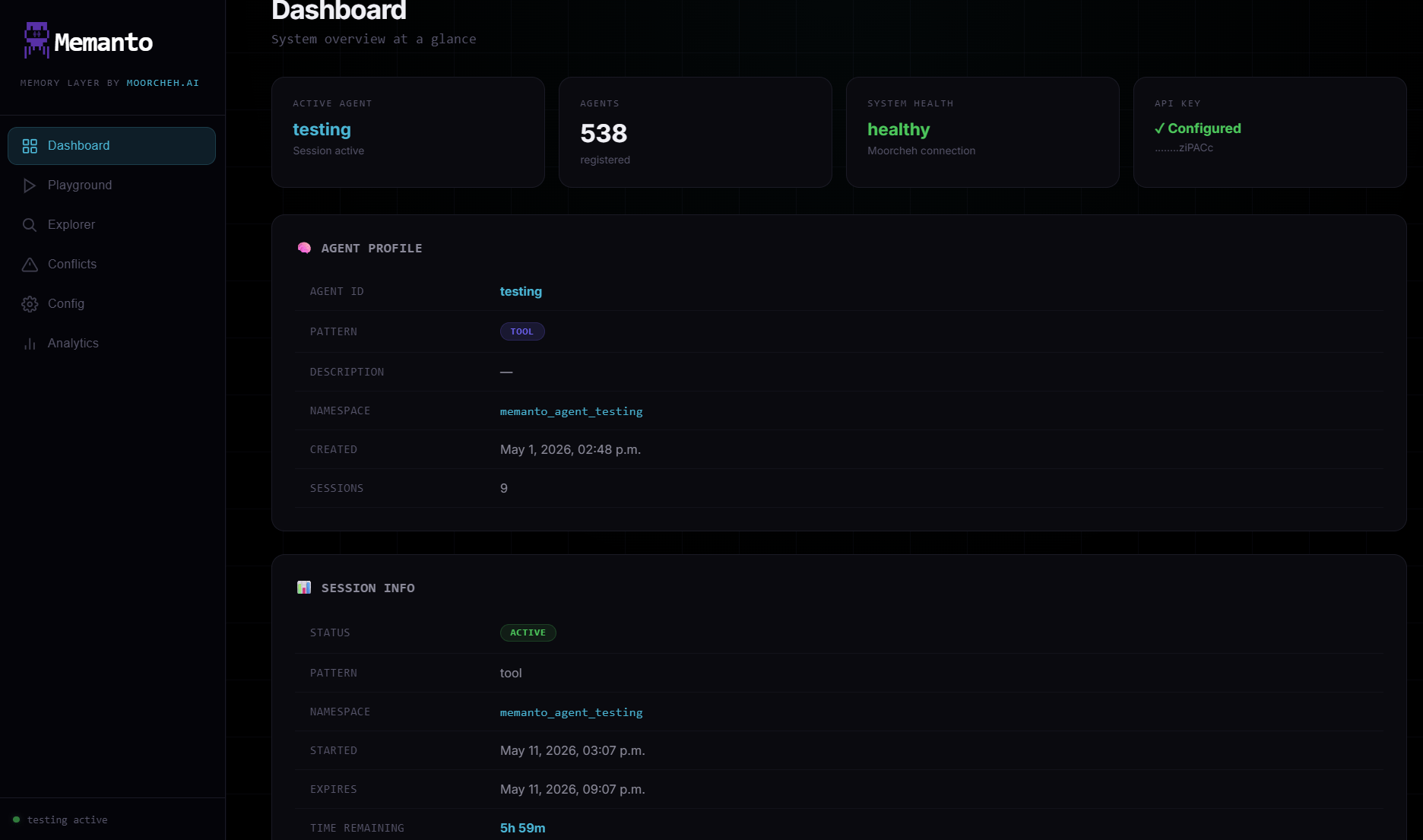
1
2
3
4
- Active agent card: Confirms which agent context is currently loaded.
- System health card: Quick check of service and connection health.
- Agent profile panel: Core metadata for the active agent.
- Session info panel: Session status, timing, and namespace details.
Additional Annotated Screens
Agents
The Agents page allows you to view all registered agents in your workspace and activate them. Activating an agent sets it as the current context for sessions and memory operations. The main table displays all registered agents along with their metadata (memories, sessions, etc.), current readiness state, and quick actions to refresh the list or activate specific agents.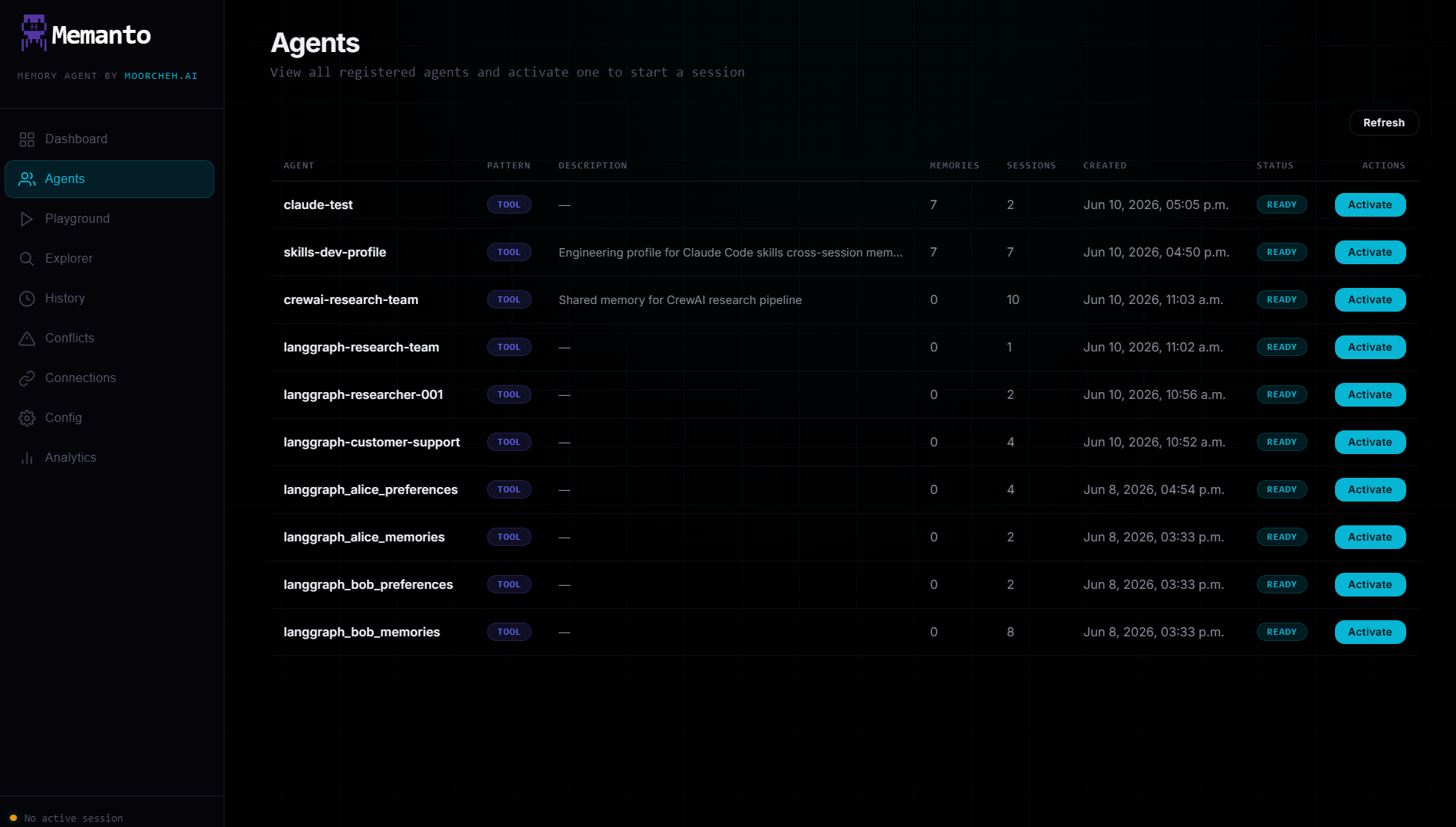
Playground
The Playground provides an interactive testing area to manually perform memory operations without needing to use the CLI.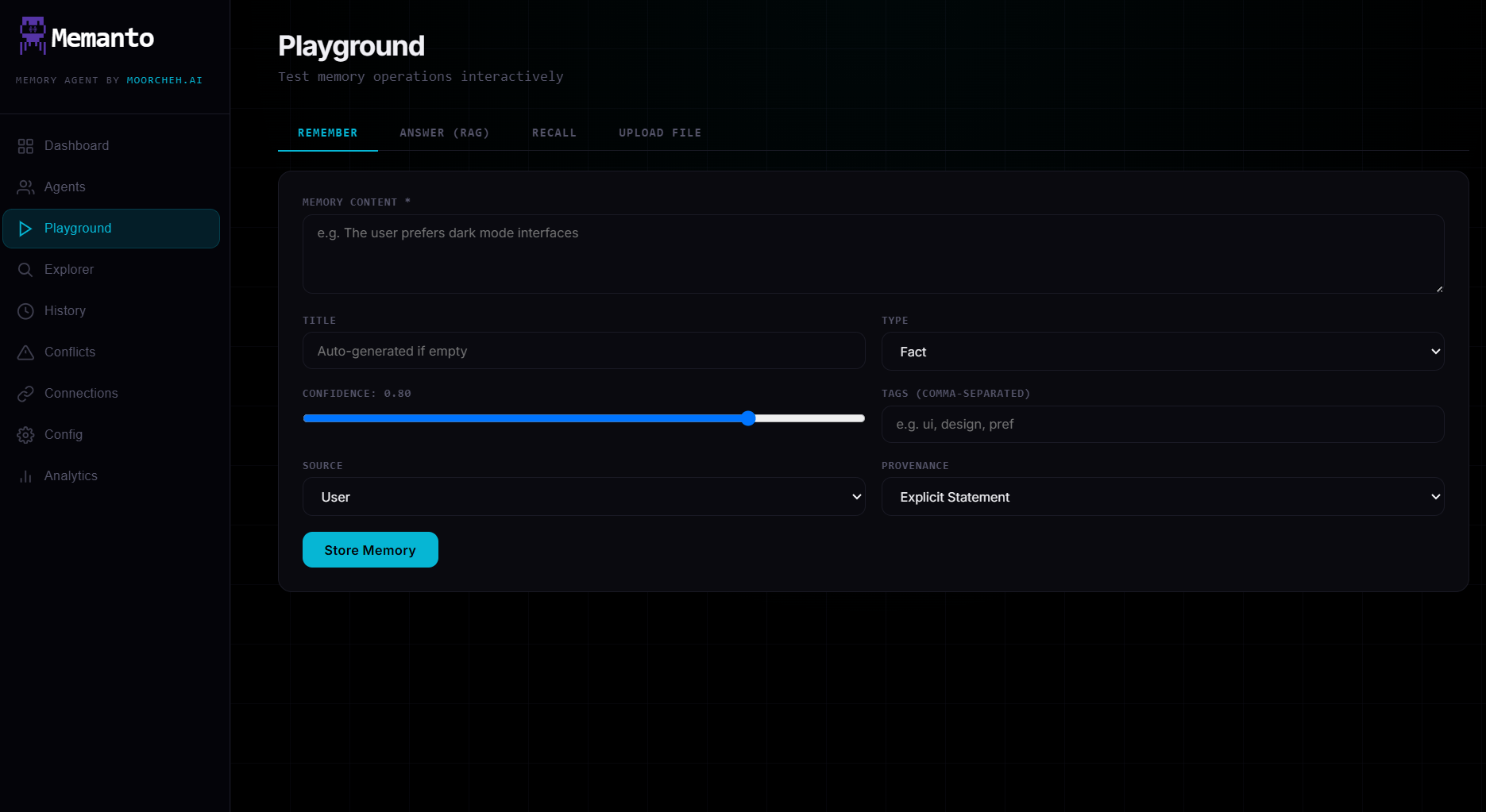
1
2
3
4
- Remember: A form to manually store memories with full metadata (type, confidence, tags, source, provenance).
- Answer (RAG): A chat interface to ask questions against the agent’s memory.
- Recall: Advanced search interface with limits, type filtering, and similarity thresholds.
- Upload File: Interface to upload documents directly into the agent’s memory namespace.
Memory Explorer
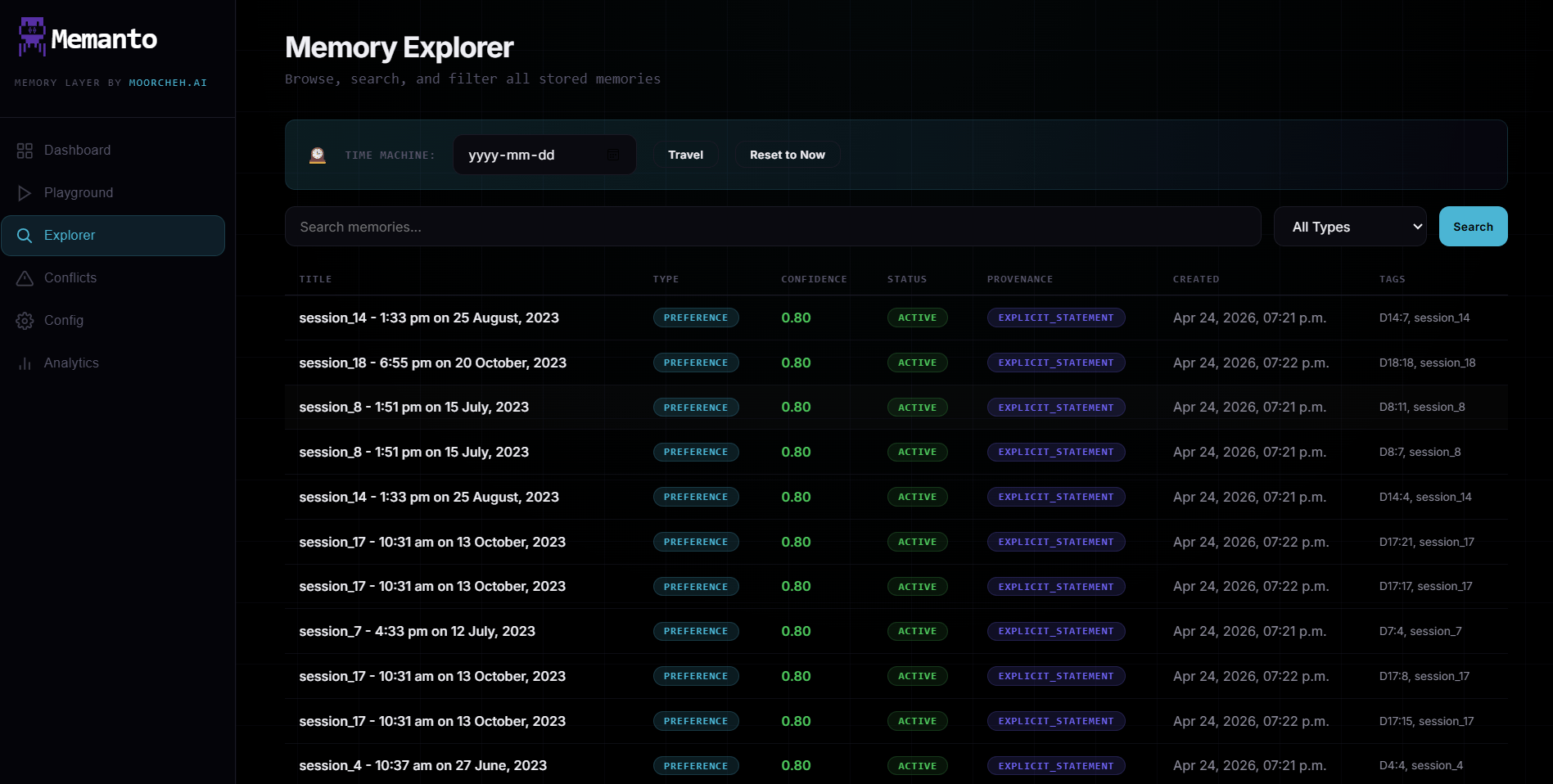
The Memory Explorer provides a complete view of your agent’s knowledge base. The main interface is a large data table displaying memory content, confidence scores, and provenance. Use the numbered controls at the top to filter and traverse this data. To perform similar queries programmatically, see thememanto recall command.
1
2
3
4
- Time machine controls: Set a date and switch the explorer to that historical memory state.
- Reset to now: Return from the historical view to the current memory state.
- Search and query: Filter memories by keyword or phrase.
- Type filter: Narrow memory results by category (e.g., event, fact).
Memory History
The Memory History page combines a contribution-style heatmap with a chronological timeline so you can inspect memory activity over time. It provides summary metrics (total memories, active days, peak day count, and longest streak) alongside a visual heatmap of activity across the last year. Below the heatmap, a chronological timeline details individual memories with their type, source, tags, time, and confidence.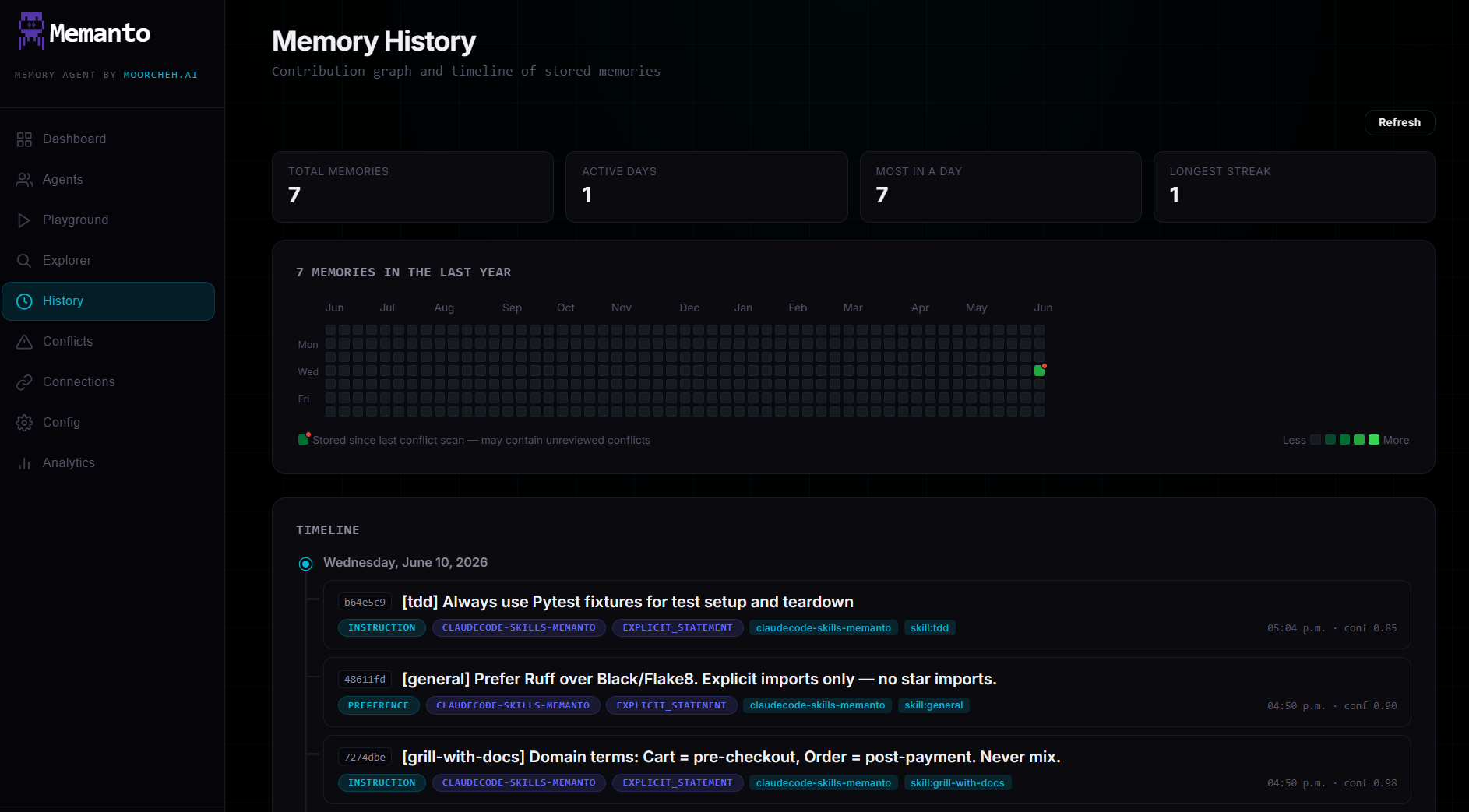
Conflict Resolution
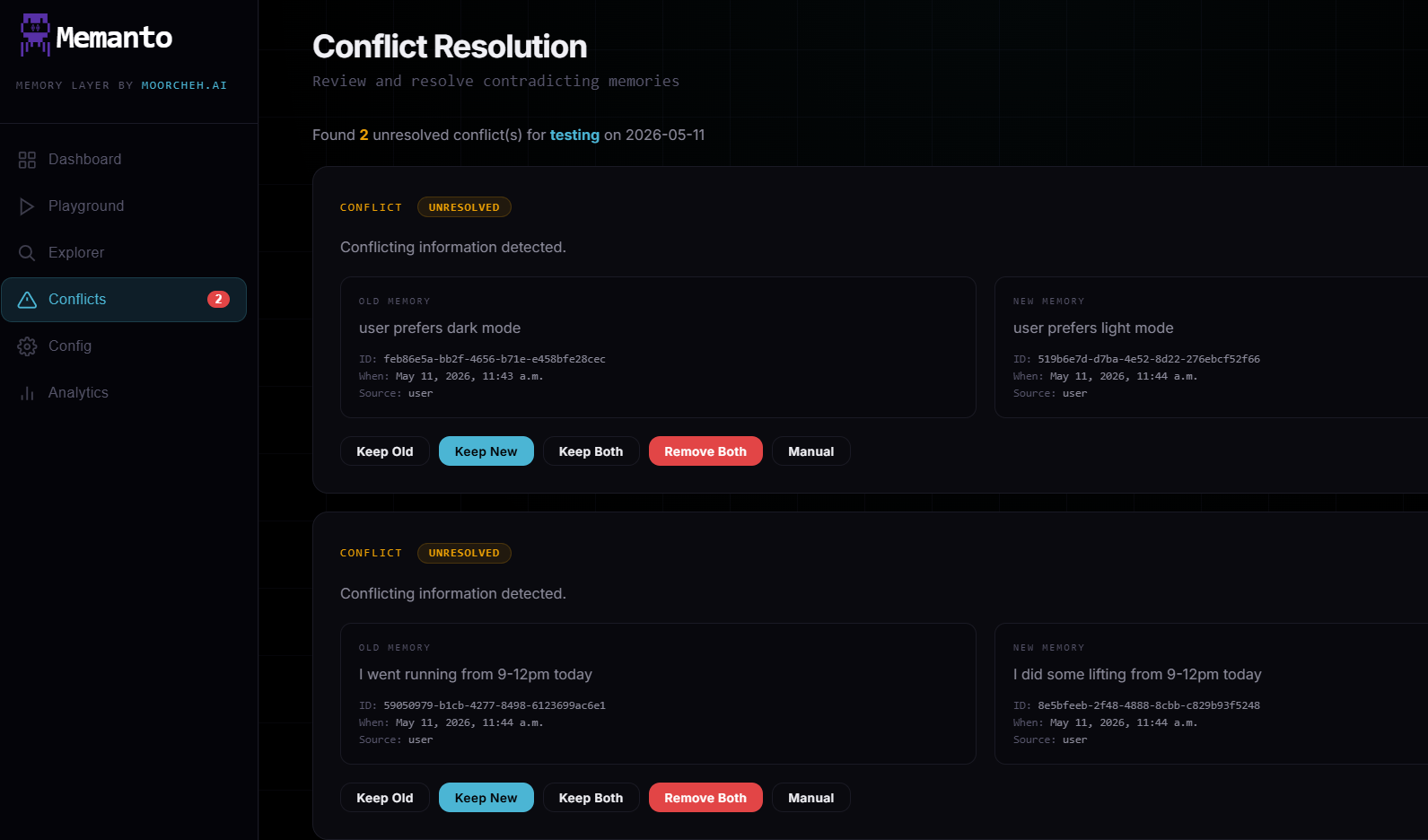
This view helps you manage contradictory memories that arise during data ingestion or scheduled scans (see Conflict Detection). The layout centers around two side-by-side memory cards: the Old Memory (currently stored) and the New Memory (the incoming statement). Below the cards are specific action buttons to resolve the conflict:- Keep Old: Rejects the incoming memory and preserves the existing one.
- Keep New: Overwrites the existing memory with the new information.
- Keep Both: Accepts the new memory while retaining the old one (useful if both are contextually true, or to establish a timeline).
- Remove Both: Deletes the old memory and rejects the new one entirely.
- Manual Merge: Opens a dialog to manually draft a new memory that synthesizes both points.
memanto conflicts CLI or the Resolve Conflicts API.
Connections
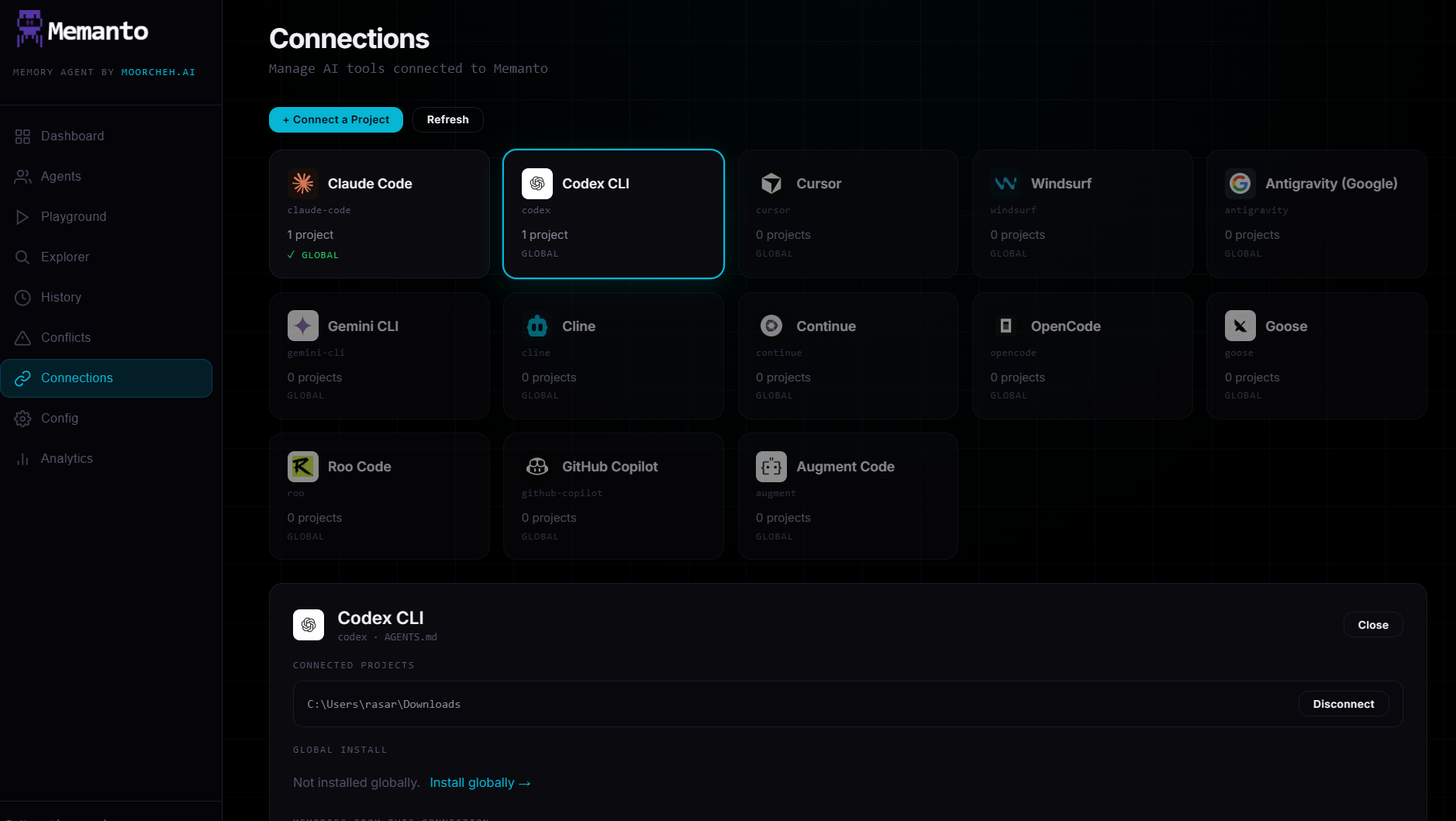
Manage AI tools connected to Memanto. This page allows you to link external AI development environments to your memory agent. You can add new projects, refresh the list of connected AI tools, and manage specific workspaces or global installations for tools like Codex CLI, Claude Code, and others. The page also shows what has actually been running, not just what is installed:- Connected tools — a diagram of each tool joined to Memanto. A tool that touched memory in the last 5 minutes shows as live.
- Sessions (last 7 days) — one row per Memanto session, showing every tool that took part along with its writes and reads. Open a row for the session’s full event timeline.
Configuration (Top Section)
1
2
3
4
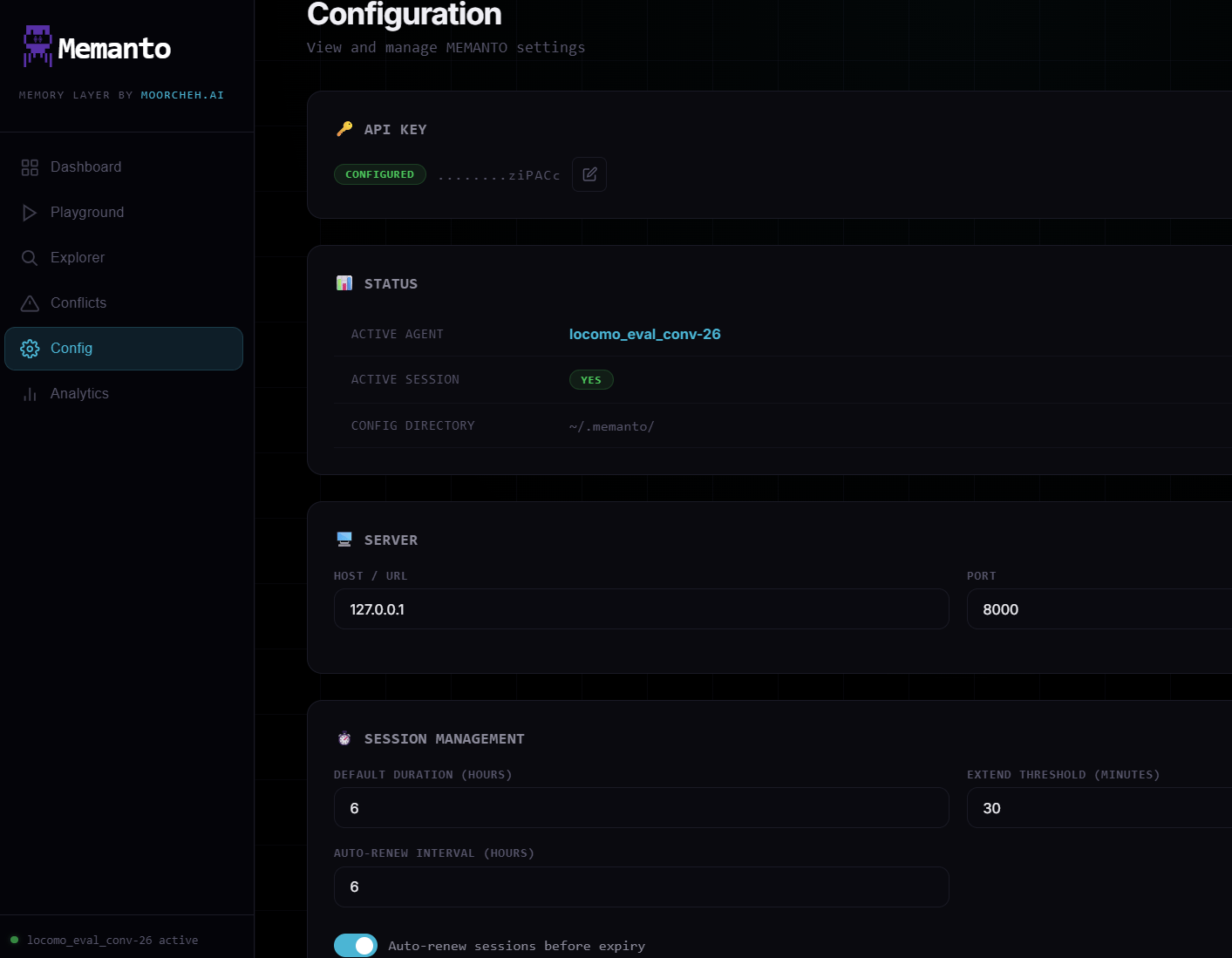
- API credentials state: Confirms API key status and access mode.
- Active context: Current active agent and session details.
- Connection settings: Server host and port used by the dashboard.
- Session behavior: Auto-renew and auto-recreate policies for sessions. Toggling either here applies to the running server immediately — no restart needed. For details on session lifecycles and expiration, see Session Management.
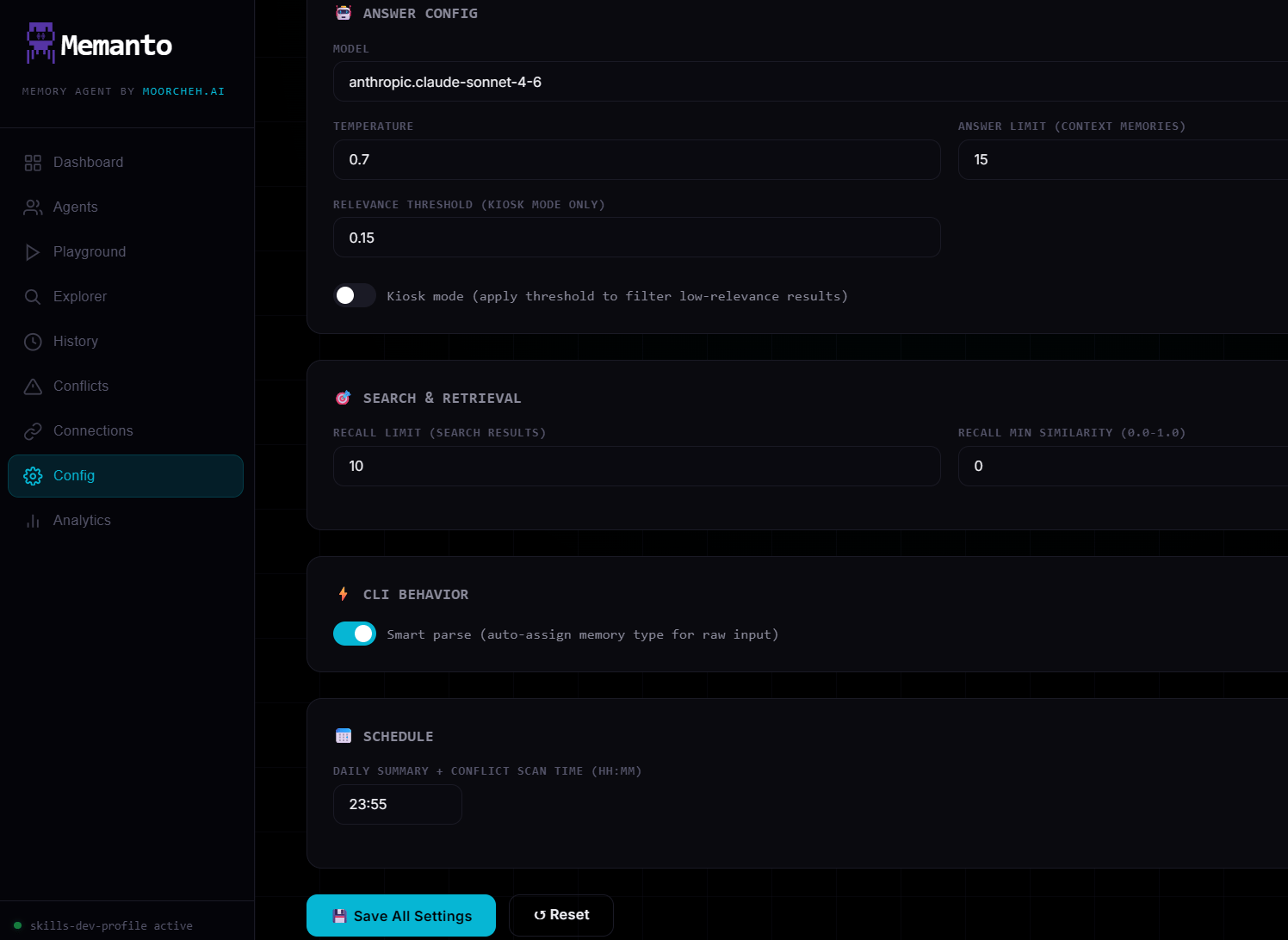
Configuration (Answer, Limits, and Schedule)
1
2
3
4
5
- Answer model: Selects the model used for AI answers. See the Available Models guide.
- Temperature: Controls response creativity and randomness. See the Temperature guide.
- Relevance threshold: Minimum similarity score required for retrieving a memory. See ITS Scoring to understand match quality.
- Auto-parse Uploads: Automatically parses and extracts memory statements from uploaded files and documents directly into the active namespace.
- Scheduling: Time for the daily summary and conflict scan job. To learn what these background jobs do, read Daily Workflows.
Usage & Analytics
The Analytics page provides a visual overview of your agent’s memory utilization, helping you understand how memory is being gathered and categorized.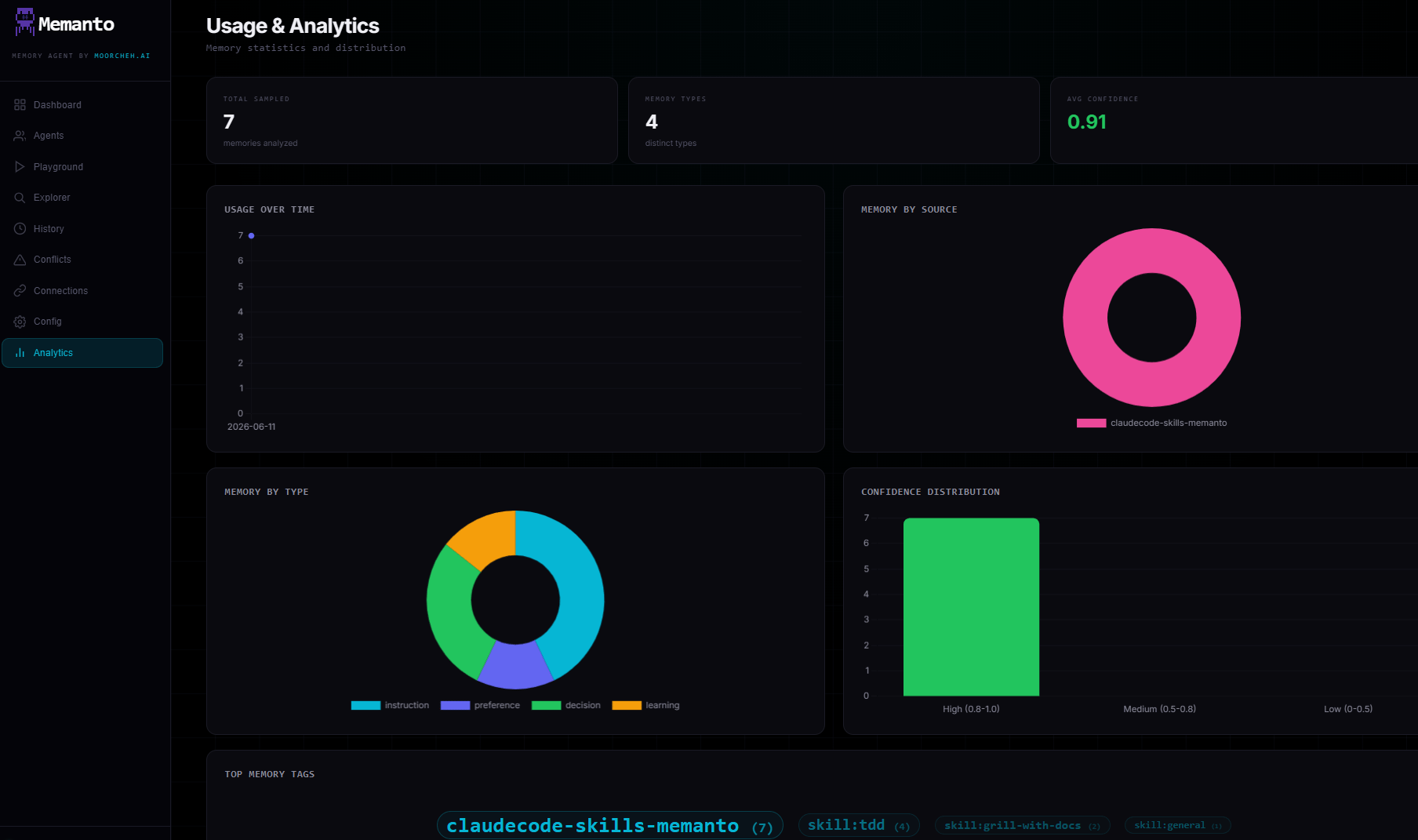
1
2
3
4
5
6
- Key metrics: High-level overview of total memories sampled, distinct types, and average confidence.
- Usage over time: Tracks memory ingestion and activity trends.
- Memory by Source: Visual breakdown of where memories are originating from.
- Memory by Type: Distribution of memory categories (e.g., instruction, preference, decision).
- Confidence distribution: Analyzes the quality and reliability scores of stored memories.
- Top memory tags: Highlights the most frequently used tags to help identify prominent subjects or skills.
memanto serve) for dashboard to function.